Nothing here matches. Try another word.
1Your first five minutes
Tick things off as you try them. Your ticks stay in this browser.
2Getting in
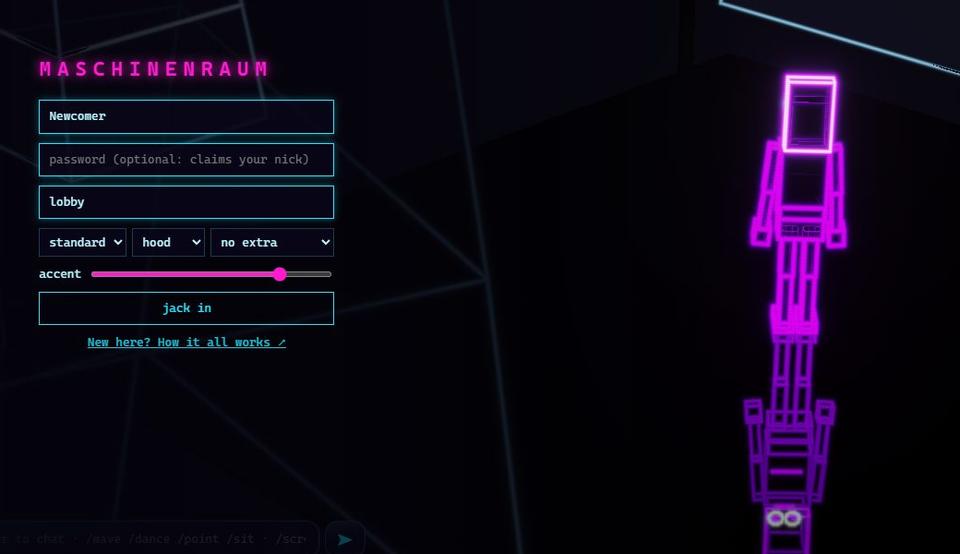
The first screen is where you choose who you are.
Nickname
The name everyone sees above your head. Up to 24 characters.
Password (optional)
Give one and the nickname becomes yours: from then on it needs that password, and nobody else can use it. Leave it empty to play as a guest.
Place
Where you start. Leave it as it is the first time. With an account, it remembers where you were last.
Outfit
Body, head, an extra and an accent colour. Your robot turns behind the form, so you can see it before you go in.
It asks for a key
Some worlds are private. Whoever runs this one gives out an access key; ask them. A second, optional builder key lets you change the world (see Building).
It says the nickname is claimed
Someone has given that nickname a password. If it is yours, type the password; otherwise pick another name.
3Moving and looking
What is on the screen
Click the numbered dots (or Tab to them)Tap the numbered dots to see what each part does.
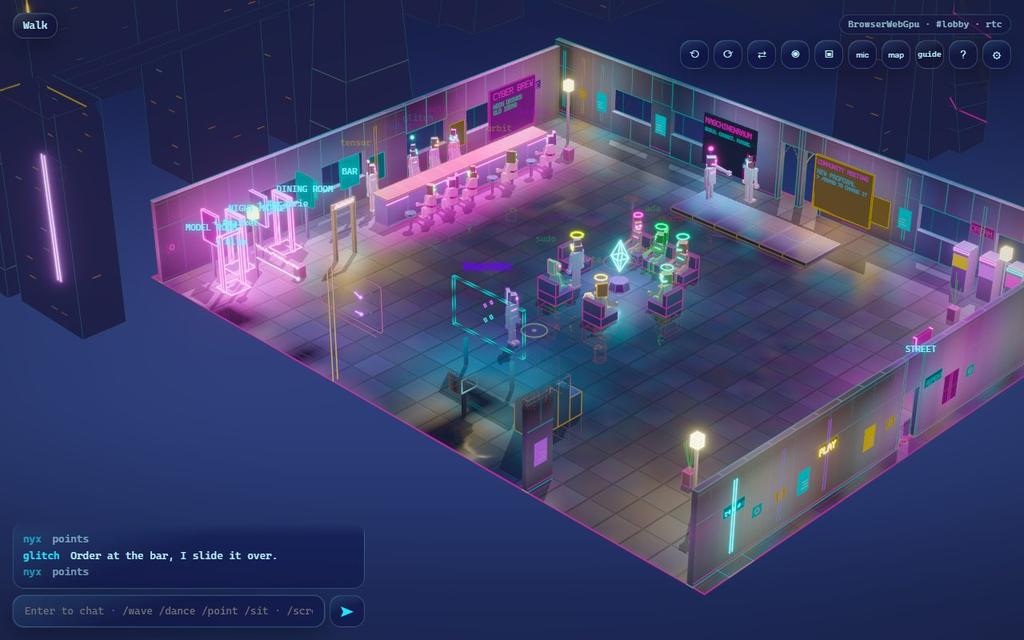
Pick a dot.
Walking
Click the floor to walk there. Click something you can use and you walk to it and use it. Stairs: click the stairs. To run, hold Shift as you click, or double-click.
Tap the floor to walk there. Tap something you can use and you walk to it and use it. Stairs: tap the stairs. To run, tap twice.
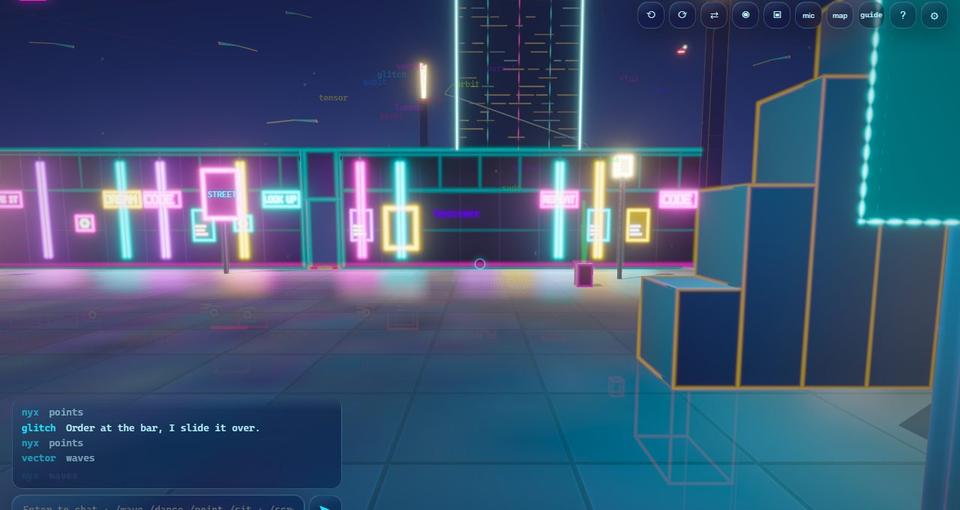
The camera
| Do | How |
|---|---|
| Turn around | Drag, or ← → for a quarter turn |
| Zoom | Mouse wheel |
| Slide the view | W A S D, or Shift + drag |
| Back to yourself | Space |
| Look at another floor | PgUp PgDn |
| See through your own eyes | V (and V or Esc to come back) |
| Do | How |
|---|---|
| Turn around | Drag with one finger, or the ⟲ ⟳ buttons |
| Zoom | Pinch |
| Slide the view | Drag with two fingers |
| Look at another floor | ▲ ▼ on the right |
| See through your own eyes | ◉ at the top |
4Getting around
The world is bigger than the place you start in.
- Open edges and doorways lead on. Where you can see another place beyond the edge, you can walk straight into it.
- Gates take you to places further away. Their hint tells you where.
- Some things carry you. If a hint offers a ride, try it.
- The map (N, or the map button)(the map button) shows the places that lie side by side, which one you are in, and how many people are in each.
- Follow someone and you walk after them wherever they go (see People).
5People and talking
Saying things
Press Enter, type, press Enter.Tap 💬, type, tap ➤. What you say shows in a bubble over your head and in the log at the bottom. Some places are quiet: there, only people close to you hear you. And some places listen: what you say there can change the room itself, and stays.
The chat button at the top hides the log and the typing box (bubbles still show); Enter💬 brings them back.
Gestures
Type /wave, /dance, /point or /sit.Tap ☺ and pick one.
Someone else
ClickTap a person for a small menu:
Walk to
Go to where they are.
Follow
Keep walking after them, even into the next place. Escunfollow stops.
Wave
Say hi without words.
Throw a note
A paper plane lands at their feet. Only they can read it.
Leave a letter
Drop a letter where you stand. It waits there, even through a restart, until they come and open it.
More ways to talk
| Type | What happens |
|---|---|
/group name | Join a group. /group alone leaves it. |
/g text | Say something to your group, wherever its members are. |
/letter nick text | Leave a letter for someone where you stand. |
/plane nick text | Throw a note to someone nearby. |
/follow nick | Follow someone; /unfollow stops. |
/help | Lists the commands in the chat. |
Pointing at a spot
Alt + clickHold a finger still on the floor, or tap ◎ then the floor to drop a marker everyone nearby sees for a few seconds.
Voice
The mic button lets people near you hear you, quieter the further away they are and muffled through walls. Your browser asks for the microphone first. Voice only works on a secure page (an address starting with https://, or your own computer).
6Using things
You don't need to know what anything is. Hover over itLook for the hint near your finger and a small label tells you what a clicktap does.
Sit
Seats, stools and sofas. Walk away or press Escclose to stand up.
Open
Doors open and close for everyone.
Read up close
Screens, signs and boards: the view flies close so you can read them. Escclose flies back.
Pick up and throw
Shift + click✋ then tap to pick something up; do it again somewhere to throw it. G⤓ puts it down.
Kick a ball
Walk into a ball to dribble it; click it to kick it, Ctrl + click the floor to kick it theretap it to kick it. Where there are goals, a ball over the line between the posts scores, for whoever touched it last.
Order
Where something is served, clicktap the counter or sit next to it to see what there is.
Turn a knob
Some panels have round knobs. Drag one up or to the right to turn it up, down or left to turn it down, or use the mouse wheel over it.Drag one up to turn it up, down to turn it down. A lit arc shows where it stands.
Share a link
Some boxes keep links: drop one in, or take the newest out.
7Games
Some places hold games. We won't tell you which or where.
- Starting: walk up to it or onto it. The hint tells you how to begin.
- Playing: a line at the top of the screen tells you what to press while you play. On a phone, the buttons you need appear above the chat.
- Leaving: Escoff or give up leaves. Leaving a match early can count as a loss.
- Machines: some machines can be played on their own screen: click one. It keeps the best scores of everyone who played it.
- Writing programs: at some terminals you write little programs that walk through a machine in front of everyone. Click a terminal to sit down: its editor opens beside the view, and anyone at the terminals next to you writes their own part of the same job. Run tries one case for all to watch (Ctrl+Enter), Fast plays it quicker on your screen only, and Submit tries a hundred cases and puts your result on the board. Some of the jobs are duels: your program against someone else's, live or against the champion they left behind, with a rating for the winner. Others are production lines: each of you writes one station, the line runs for a shift while you work on it, and Save puts your station back into the running line (Ctrl+Enter). And some run lights: write a light show, queue it, and the whole room watches it for a minute; Try plays a puzzle on the lights for you alone before you submit it. The Instructions list in the editor explains every word, and a strip of buttons types them for you. Esc closes the editor; walk away to stand up.
- Watching: stand nearby and you see someone else's game as they play it, and hear it too. When nobody plays, some games play themselves.
- Results: boards nearby keep the best results, and some wins earn you something to wear for a while.
8Building
If you are allowed to build (some worlds need the builder key), you can change places for everyone, and the changes stay.
| Do | How |
|---|---|
| Start or stop building | E |
| Pick what to place | The bar at the top, or 1–0 (with Shift or Alt for more) |
| Place it | Click a free spot |
| Turn what you place | R |
| Remove something | X then click, or right-click |
| Take back your last change | Ctrl + Z |
| Write on a screen or board | Stand next to it and type /screen text or /board Title | line | line |
| Point a gate somewhere | Stand next to it and type /portal place |
Building needs a keyboard and mouse. On a phone you can still walk, talk and play everywhere.
9Looks, sound and settings
Open ⚙ (top right). Everything here changes only what you see and hear.
Look
Whole styles for the world: from soft dioramas to drawn comics, film stocks, times of day and clean wireframes. Pick one and everything follows, or press U to step through them all.
Quality
Auto picks for your device, and if it still runs slowly, quietly makes the picture plainer step by step until it runs smoothly; a note under the menu says so. Choose Low if your device gets warm.
Sound and ambience
How loud the game is, and how loud the background hum of each place is.
Fine-tune
Glow, reflections, shadows, trails, lighting, line styles. Changing any of them marks your look as tuned.
Line weights
Under Fine-tune: every line drawn in one of three widths, thin for detail, medium for the edges of things, thick for their outlines. Three sliders set the widths.
Text size, contrast, motion
Bigger text, solid backgrounds behind names and panels, and less movement on screen. See Comfort.
Scenery and race look
What lies outside the places, and how races look. Off is the fastest.
For slow graphics
Under Fine-tune: Resolution (fewer pixels), Basic light (simpler lighting), and Lighting Off.
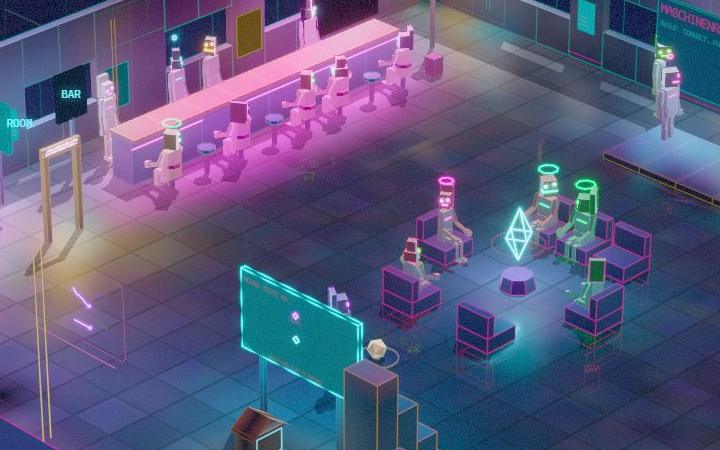
The six main looks
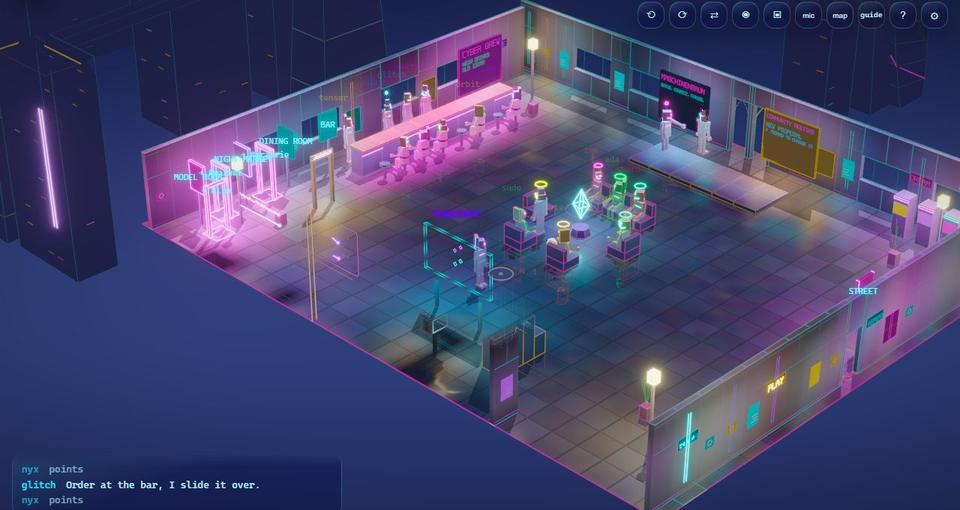
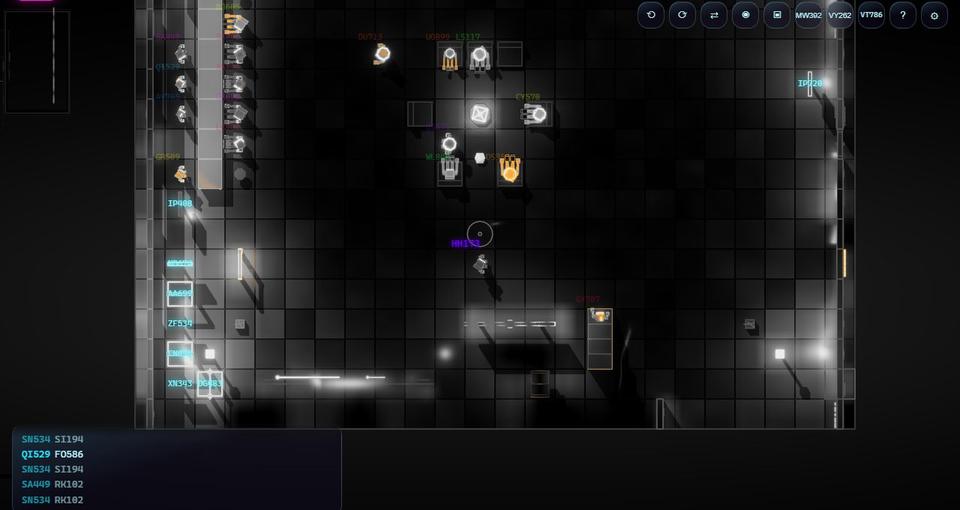
The same spot in each. In photo mode, 1 to 6 switch between them. The menu has more, made from these.
Fun with the camera
| Mode | KeyButton | What it does |
|---|---|---|
| Photo mode | O▣ | A free camera with exposure, grain, blur and frames. While you move it the picture is lighter; hold still and it turns as good as your device can draw. All rooms of the world shows the whole world at once. C⧉ saves a picture once the light has settled. |
| Boss mode | B— | Turns everything into a dull grey grid and silences it. Press again to come back. |
| Round trips | L⇄ | How fast your connection is to everyone else. |
10Comfort and accessibility
- Text size (⚙): Normal to Largest, for names, chat, panels and buttons.
- High contrast (⚙): solid backgrounds behind names and panels, brighter text.
- Reduce motion (⚙): no trails, glitches, flicker or animated panels. It is on from the start if your system asks for less motion.
- Shapes as well as colours: wherever two sides are told apart by colour, they also look different.
- Keyboard all the way: every panel closes with Esc, and ? shows every key.
- Sound is never required: everything you hear also shows on screen.
11Your account and privacy
What an account keeps
When you join with a password, your nickname is yours, and these follow you to any browser and survive restarts:
- your outfit,
- your group,
- your display settings,
- where you were.
Managing it
⚙ → Account: change your password or log out.
What others see
- Your nickname, outfit and where you walk, while you are in the same place or close to it.
- What you say (in quiet places, only people near you).
- Never your password. Notes and letters are read only by the person they are for.
12Phones and tablets
The touch bar
On the right: 💬 chat, ☺ gestures, ✋ pick up and throw, ⤓ put down, ◎ mark a spot, ▲ ▼ floors, ⧉ snapshot.
Buttons when you need them
While you play a game, follow someone, or have a panel open, the right buttons appear above the chat.
Fast games
Where a game needs quick hands, big buttons for your thumbs take over the screen; auto keeps you going so one thumb is free, ✕ leaves.
Gestures
One finger drags the view, two fingers slide it, pinch zooms, a long press marks a spot.
Install it
Use your browser's "Add to home screen" to open it full screen like an app.
13When something is off
There is no sound
Browsers keep sound off until you click or press a key on the page: do that once. Check ⚙ → Sound isn't Off, and that the tab isn't muted.
It is slow or my device gets hot
⚙ → Quality → Auto or Low. Under Fine-tune, a lower Resolution and Basic light help most; Scenery Off a little. Closing other tabs helps too.
It looks plainer than in pictures, or voice doesn't work
The best graphics and the microphone need a secure page: an address starting with https://, or the game running on your own computer. On a plain http:// address, the game falls back to simpler graphics and has no voice.
The world stays black
Your browser's graphics may have refused something. ⚙ → Show GPU errors puts a box on the page saying what; send a screenshot of it to whoever runs the world.
A red box appeared
Something went wrong in your browser. Copy puts the details on your clipboard to send to whoever runs the world; Reload starts over.
It says "slow down"
You did a lot of things very fast, and some of them were skipped. Wait a moment.
"Disconnected – reconnecting"
Your connection dropped. It comes back by itself and puts you where you were. A game you were in the middle of may be lost; you will be told.
14Every key
Press any key here and its line lights up.
These are for a keyboard; on a touch screen everything has a button.
| Key | What it does |
|---|---|
| Enter | Chat |
| Ctrl+Enter | In a program editor: run it |
| Esc | One step back: close, stand up, stop following, leave a game |
| ? | Show every key in the game |
| U | Next look (Shift+U: the one before): step through every look there is |
| ← → | Quarter turn (in some games: steering) |
| ↑ ↓ | Used by some games |
| W A S D | Slide the view (in some games: steering) |
| Space | Camera back to you (in some games: an action) |
| PgUp PgDn | Look at other floors |
| N | The map |
| V | Through your own eyes |
| O | Photo mode |
| C | Snapshot |
| B | Boss mode |
| L | Round trips |
| G | Put down what you hold (in some games: an action) |
| M | Reflections on and off |
| H | Shadows on and off |
| P | Trails on and off |
| K X T | Used by some games; the line at the top says when |
| E | Building on and off |
| R | While building: turn what you place |
| Ctrl + Z | Take back your last change |
| Shift + click | Run there, or pick up or throw what you click |
| Alt + click | Mark a spot for everyone |
| F3 | Timings, for the curious |